

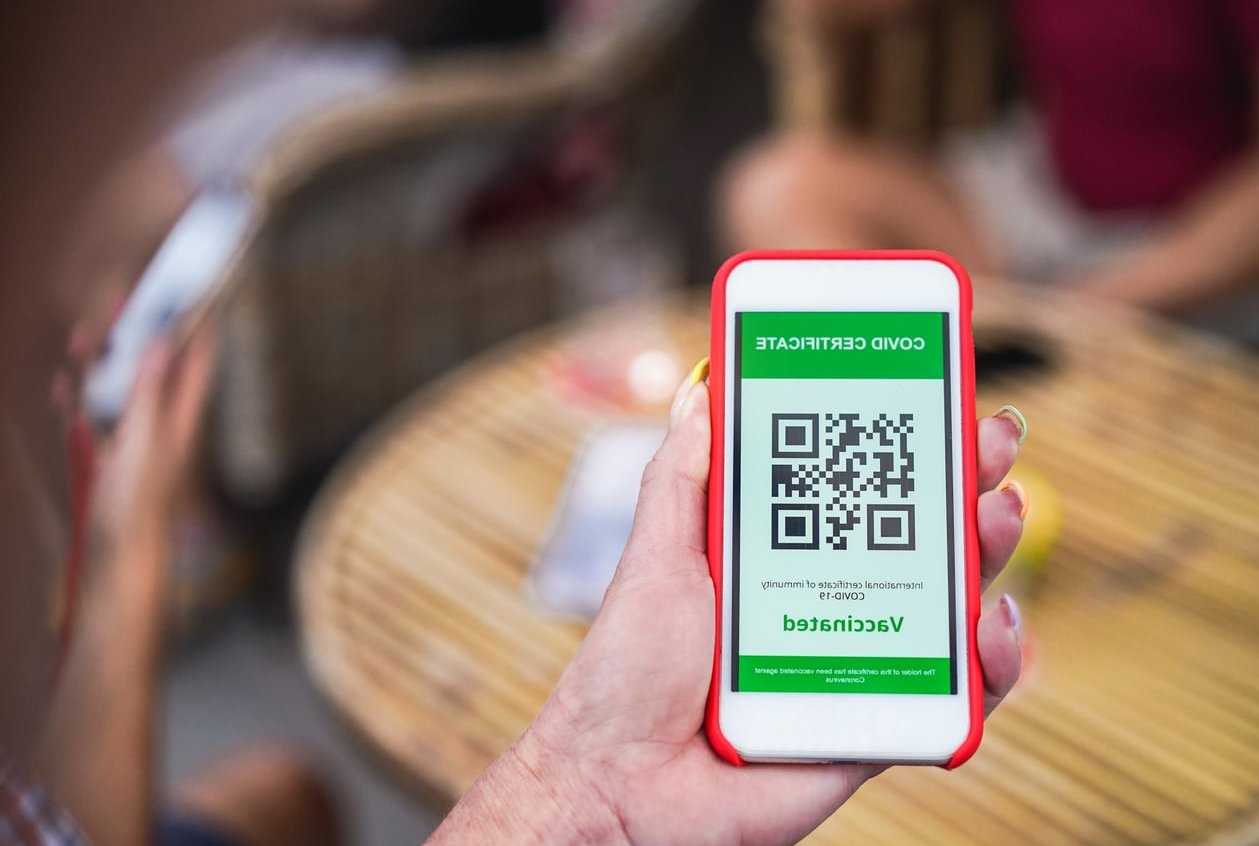
A WooCommerce sticky add to cart bar keeps the price and the buy button permanently in view while shoppers scroll through descriptions, galleries, tabs and reviews. On mobile, where the real add to cart button disappears after two swipes, that single UI element often does more for conversions than a redesign of the whole product page.
Most articles on this topic end with the same advice: install a plugin. This tutorial does the opposite. You will build the bar yourself in a child theme with about 60 lines of PHP, a small CSS file and a lightweight JavaScript scroll listener. No extra plugin, no bloated settings panel, no render-blocking assets, and full control over what the bar shows.
What you are going to build
- A fixed bar that slides in only after the original add to cart form scrolls out of view.
- Product thumbnail, truncated product name, live price and one clear call to action.
- Variable product support: the price updates when a variation is selected, and the button switches from Choose options to Add to cart.
- Zero cumulative layout shift, correct behaviour inside the iPhone safe area, and 44px tap targets.
- Compatibility with both classic themes and block-based (FSE) product templates.
Files you will create in your child theme
functions.php(add the two snippets below)assets/css/sticky-atc.cssassets/js/sticky-atc.js

Plugin or custom code: which one should you pick?
Plugins such as Sticky Cart for WooCommerce, Simple Sticky Add To Cart or the various builder add-ons are fine if you want a five minute setup. They are not fine if you care about page weight and Core Web Vitals on product pages. Here is an honest comparison.
| Criteria | Custom code (this tutorial) | Sticky add to cart plugin |
|---|---|---|
| Extra front-end weight | About 2 KB CSS + 2 KB JS, product pages only | Often 20 to 150 KB, sometimes loaded site-wide |
| Control over markup | Total, you own every element | Limited to the options exposed |
| Layout shift risk | None, the bar is server rendered and animated with transform | Common, many inject the bar with JS after load |
| Setup time | 20 to 30 minutes | 5 minutes |
| Maintenance | You maintain it, it never breaks on plugin updates | Vendor dependent, can break after WooCommerce updates |
| Cost | Free | Free to around 79 USD per year |
Rule of thumb: if your store is above 1,000 sessions a day, the custom version pays for itself in Core Web Vitals alone.
Before you start
- An active child theme. Never edit a parent theme, your changes will be wiped on the next update.
- FTP, SFTP or the file manager of your host. The theme file editor works too, but a backup first is mandatory.
- A staging copy if the store is live.
- WooCommerce with jQuery available (WooCommerce still loads it on product pages, and we use it only for variation events).
Step 1: Enqueue the CSS and JS on product pages only
Add this to the bottom of your child theme functions.php. The conditional check means the assets never touch your home page, your blog or your checkout.
/**
 * Load sticky add to cart assets on single product pages only.
 */
add_action( 'wp_enqueue_scripts', 'exp_sticky_atc_assets' );
function exp_sticky_atc_assets() {

    if ( ! function_exists( 'is_product' ) || ! is_product() ) {
        return;
    }

    wp_enqueue_style(
        'exp-sticky-atc',
        get_stylesheet_directory_uri() . '/assets/css/sticky-atc.css',
        array(),
        '1.0.0'
    );

    wp_enqueue_script(
        'exp-sticky-atc',
        get_stylesheet_directory_uri() . '/assets/js/sticky-atc.js',
        array( 'jquery' ),
        '1.0.0',
        true
    );
}
Step 2: Output the bar with a hook
Many tutorials hook into woocommerce_after_single_product. That hook does not fire on block-based product templates, which more and more stores now use. Hooking wp_footer with an is_product() check works everywhere, classic or FSE, and it keeps the bar at the end of the DOM where a fixed element belongs.
/**
 * Render the sticky add to cart bar in the footer of single product pages.
 */
add_action( 'wp_footer', 'exp_sticky_atc_bar', 20 );
function exp_sticky_atc_bar() {

    if ( ! function_exists( 'is_product' ) || ! is_product() ) {
        return;
    }

    global $product;

    if ( ! is_a( $product, 'WC_Product' ) ) {
        $product = wc_get_product( get_the_ID() );
    }

    // Skip products nobody can buy from the bar.
    if ( ! $product || ! $product->is_purchasable() || ! $product->is_in_stock() ) {
        return;
    }

    $is_variable  = $product->is_type( 'variable' );
    $add_text     = $product->single_add_to_cart_text();
    $options_text = __( 'Choose options', 'child-theme' );
    $price_html   = $product->get_price_html();

    $image = $product->get_image(
        'woocommerce_gallery_thumbnail',
        array(
            'loading' => 'eager',
            'width'   => 48,
            'height'  => 48,
            'alt'     => '',
        )
    );
    ?>
    <div id="exp-sticky-atc" class="exp-sticky-atc" aria-hidden="true"
         data-add-text="<?php echo esc_attr( $add_text ); ?>"
         data-options-text="<?php echo esc_attr( $options_text ); ?>"
         data-default-price="<?php echo esc_attr( $price_html ); ?>">

        <div class="exp-sticky-atc__inner">

            <div class="exp-sticky-atc__media" aria-hidden="true">
                <?php echo $image; // phpcs:ignore WordPress.Security.EscapeOutput ?>
            </div>

            <div class="exp-sticky-atc__info">
                <span class="exp-sticky-atc__title"><?php echo esc_html( $product->get_name() ); ?></span>
                <span class="exp-sticky-atc__price"><?php echo wp_kses_post( $price_html ); ?></span>
            </div>

            <button type="button"
                    class="button exp-sticky-atc__button"
                    data-product-id="<?php echo esc_attr( $product->get_id() ); ?>"
                    <?php echo $is_variable ? 'data-needs-options="1"' : ''; ?>>
                <?php echo esc_html( $is_variable ? $options_text : $add_text ); ?>
            </button>

        </div>
    </div>
    <?php
}
Because the bar is printed by PHP, it exists in the HTML the browser receives. That is the first half of the no-layout-shift strategy: nothing is injected after load.
Step 3: The CSS (mobile-first, safe area aware)
Create assets/css/sticky-atc.css in your child theme and paste the following.
:root {
    --exp-atc-height: 64px;
    --exp-atc-offset: 0px; /* raise the bar if you have a chat widget */
}

/* Reserve the space at CSS parse time so the footer is never hidden
   and nothing moves after load. */
@media (max-width: 991px) {
    body.single-product {
        padding-bottom: calc(var(--exp-atc-height) + env(safe-area-inset-bottom, 0px));
    }
}

.exp-sticky-atc {
    position: fixed;
    left: 0;
    right: 0;
    bottom: var(--exp-atc-offset);
    z-index: 9990;
    background: #fff;
    border-top: 1px solid #e5e7eb;
    box-shadow: 0 -2px 14px rgba(0, 0, 0, .08);
    padding: 8px 12px calc(8px + env(safe-area-inset-bottom, 0px));
    transform: translateY(110%);
    transition: transform .22s ease;
    will-change: transform;
    pointer-events: none;
    contain: layout paint;
}

.exp-sticky-atc.is-visible {
    transform: translateY(0);
    pointer-events: auto;
}

.exp-sticky-atc__inner {
    display: flex;
    align-items: center;
    gap: 10px;
    max-width: 1200px;
    margin: 0 auto;
    min-height: 48px;
}

.exp-sticky-atc__media img {
    display: block;
    width: 48px;
    height: 48px;
    object-fit: cover;
    border-radius: 6px;
}

.exp-sticky-atc__info {
    display: flex;
    flex-direction: column;
    min-width: 0;
    flex: 1 1 auto;
    line-height: 1.25;
}

.exp-sticky-atc__title {
    font-size: 14px;
    font-weight: 600;
    white-space: nowrap;
    overflow: hidden;
    text-overflow: ellipsis;
}

.exp-sticky-atc__price {
    font-size: 15px;
    font-weight: 700;
}

.exp-sticky-atc__price del { opacity: .55; font-weight: 400; margin-right: 4px; }
.exp-sticky-atc__price ins { text-decoration: none; }

.exp-sticky-atc__button {
    flex: 0 0 auto;
    min-height: 44px;
    min-width: 132px;
    padding: 10px 18px;
    font-size: 15px;
    line-height: 1.2;
    border-radius: 6px;
    cursor: pointer;
}

/* Hide the thumbnail on very small screens to protect the CTA width. */
@media (max-width: 380px) {
    .exp-sticky-atc__media { display: none; }
    .exp-sticky-atc__button { min-width: 118px; }
}

/* Desktop: move it to the top, it feels less intrusive there. */
@media (min-width: 992px) {
    .exp-sticky-atc {
        top: 0;
        bottom: auto;
        border-top: 0;
        border-bottom: 1px solid #e5e7eb;
        box-shadow: 0 2px 14px rgba(0, 0, 0, .08);
        transform: translateY(-110%);
        padding: 10px 24px;
    }
}

@media (prefers-reduced-motion: reduce) {
    .exp-sticky-atc { transition: none; }
}
Important: if your theme already has a sticky header, increase the desktop top value or keep the bar at the bottom on all breakpoints. Two stacked sticky elements are a conversion killer on small screens.
Step 4: The JavaScript scroll listener
Create assets/js/sticky-atc.js. The script watches the real add to cart form with an IntersectionObserver (cheaper than a scroll handler), falls back to a throttled scroll listener on very old browsers, forwards clicks to the real button, and keeps the price in sync with the selected variation.
(function () {
    'use strict';

    var bar = document.getElementById('exp-sticky-atc');
    if (!bar) { return; }

    var form = document.querySelector('form.cart, .wp-block-woocommerce-add-to-cart-form form');
    var realButton = form ? form.querySelector('.single_add_to_cart_button, button[name="add-to-cart"]') : null;
    var barButton = bar.querySelector('.exp-sticky-atc__button');
    var priceEl = bar.querySelector('.exp-sticky-atc__price');
    var visible = false;

    function show() {
        if (visible) { return; }
        bar.classList.add('is-visible');
        bar.setAttribute('aria-hidden', 'false');
        visible = true;
    }

    function hide() {
        if (!visible) { return; }
        bar.classList.remove('is-visible');
        bar.setAttribute('aria-hidden', 'true');
        visible = false;
    }

    /* 1. Show the bar only once the real form is out of view. */
    if (form && 'IntersectionObserver' in window) {
        var observer = new IntersectionObserver(function (entries) {
            entries.forEach(function (entry) {
                entry.isIntersecting ? hide() : show();
            });
        }, { threshold: 0, rootMargin: '0px 0px -40px 0px' });

        observer.observe(form);
    } else {
        var ticking = false;
        window.addEventListener('scroll', function () {
            if (ticking) { return; }
            ticking = true;
            window.requestAnimationFrame(function () {
                var bottom = form ? form.getBoundingClientRect().bottom : 700;
                bottom < 0 ? show() : hide();
                ticking = false;
            });
        }, { passive: true });
    }

    /* 2. Forward the click to the real add to cart button. */
    if (barButton) {
        barButton.addEventListener('click', function (e) {
            e.preventDefault();

            var needsOptions = barButton.hasAttribute('data-needs-options');
            var disabled = !realButton ||
                realButton.disabled ||
                realButton.classList.contains('disabled');

            if (needsOptions || disabled) {
                if (form) {
                    form.scrollIntoView({ behavior: 'smooth', block: 'center' });
                    var firstField = form.querySelector('select, input[type="radio"]');
                    if (firstField) {
                        setTimeout(function () { firstField.focus(); }, 450);
                    }
                }
                return;
            }

            realButton.click();

            if (typeof gtag === 'function') {
                gtag('event', 'sticky_add_to_cart_click', {
                    product_id: barButton.getAttribute('data-product-id')
                });
            }
        });
    }

    /* 3. Keep price and label in sync with the chosen variation. */
    if (window.jQuery && form) {
        var $form = window.jQuery(form);

        $form.on('found_variation', function (event, variation) {
            if (priceEl && variation.price_html) {
                priceEl.innerHTML = variation.price_html;
            }
            if (barButton) {
                barButton.removeAttribute('data-needs-options');
                barButton.textContent = bar.getAttribute('data-add-text');
            }
        });

        $form.on('reset_data', function () {
            if (priceEl) {
                priceEl.innerHTML = bar.getAttribute('data-default-price');
            }
            if (barButton) {
                barButton.setAttribute('data-needs-options', '1');
                barButton.textContent = bar.getAttribute('data-options-text');
            }
        });
    }
}());
Why forward the click instead of rebuilding the form?
Clicking the real button means WooCommerce handles everything for you: quantity, variation ID, AJAX add to cart if the theme supports it, third party add-ons such as product add-ons or subscriptions, and any validation. Rebuilding a second form is where most custom implementations break.

Step 5: Where to place the bar
Placement is not a matter of taste, it is a matter of thumb reach and of what else is already sticky on the screen.
| Placement | Best for | Watch out for |
|---|---|---|
| Bottom bar (mobile) | Default choice, sits in the natural thumb zone | Chat widgets, cookie banners, iOS home indicator |
| Top bar (desktop) | Long product pages with tabs and reviews | Conflicts with an existing sticky header |
| Sticky summary column (desktop) | High ticket items with long specs | Needs a two column layout, more CSS work |
Step 6: What data to show inside the bar
Every extra element steals width from the button. This is the split that works best on a 360px viewport. Anyone digging further should read Best WooCommerce Sticky Add to Cart Plugins.
| Element | Mobile | Desktop | Reason |
|---|---|---|---|
| Thumbnail | Hide below 380px | Show | Reassures which variation is selected |
| Product name | One line, ellipsis | Full | Context without wrapping the bar |
| Price (with sale strike) | Always | Always | Price is the number one purchase trigger |
| Variation summary | After selection | After selection | Prevents the wrong size being added |
| Quantity input | Hide | Optional | Quantity is edited in the cart anyway |
| Stock or shipping note | Only if short | Yes | In stock, ships today is a strong nudge |
| Secondary links | Never | Never | One bar, one action |
Step 7: How to avoid layout shift on mobile
Cumulative Layout Shift is the reason many sticky bars quietly damage rankings and conversions. Run through this list:
- Render the bar server side. Our PHP prints it in the footer, so it is part of the first paint. Injecting HTML with JavaScript after load is the main cause of CLS in sticky bar plugins.
- Animate with transform only. Never animate
height,bottomordisplay. A translateY does not trigger layout. - Reserve the space in CSS, not in JS. The
padding-bottomrule onbody.single-productis parsed before paint, so nothing moves later. - Fix the image dimensions. Width and height are declared in both PHP and CSS, and the thumbnail is loaded eagerly since it is tiny.
- Reserve the price width if you use a custom font. Font swapping on a bold price can shift the button. A
min-widthon the price container solves it. - Respect the safe area.
env(safe-area-inset-bottom)keeps the button above the iOS home indicator. - Test it. Chrome DevTools, Performance panel, mobile throttling, then look for a CLS score of 0 on the product page.
Step 8: Test, then measure
Functional tests
- Simple product: bar appears after the form scrolls away, click adds to cart.
- Variable product: button says Choose options, scrolls to the selects, then turns into Add to cart with the variation price.
- Out of stock and external or affiliate products: bar is hidden or points to the external URL.
- Sale product: the crossed out price and the sale price both render correctly.
- Keyboard and screen reader: the bar is reachable,
aria-hiddenflips correctly. - Caching or optimisation plugins: confirm your JS is not deferred in a way that breaks the jQuery variation events.
Conversion measurement
The GA4 snippet in the script fires a sticky_add_to_cart_click event. Compare, over at least two full weeks:
- Add to cart rate on mobile before and after.
- Share of add to cart events coming from the sticky bar versus the main button.
- Product page bounce rate and scroll depth, to make sure the bar is not hiding content.
If mobile add to cart rate moves less than one point, test a different label (Add to cart versus Add to bag versus Buy now) or a different placement before you conclude that the bar does not work.
Troubleshooting
| Symptom | Likely cause and fix |
|---|---|
| Bar never appears | The theme does not use form.cart. Inspect the page and add your selector to the querySelector call. |
| Bar is always visible | The form was not found, so the observer never runs. Same fix as above. |
| Price does not update on variations | jQuery is deferred or the theme uses a custom variation script. Remove the defer rule for jQuery in your optimisation plugin. |
| Bar hides the footer or the cookie banner | Adjust --exp-atc-height or --exp-atc-offset. |
| Bar sits behind the theme header | Raise the z-index above the header value. |
| Adding from the bar reloads the page | Normal behaviour when AJAX add to cart is disabled for product pages. Enable it or accept the redirect to cart. |
Optional upgrades
- Add a mini quantity stepper on desktop only, bound to the real quantity input with a two line event listener.
- Show a free shipping progress line inside the bar for carts close to the threshold.
- Delay the bar by an extra 200px of scroll so it does not flash on very short product pages.
- Add a Buy now button that adds the product and redirects straight to checkout, useful for single product stores.
FAQ
What does sticky add to cart mean?
It means the add to cart button stays fixed in the viewport while the visitor scrolls, usually in a slim bar at the bottom on mobile or at the top on desktop. The bar normally repeats the product name, the current price and the buy button so the purchase decision is always one tap away. github.com has covered this at length.
Does a sticky add to cart bar really increase conversions?
On long mobile product pages it usually does, because the main button is only visible for the first screen or two. The gain depends on your page length, traffic quality and price point, so measure it with a GA4 event or an A/B test rather than assuming a fixed percentage.
How can I customize the add to cart button in WooCommerce?
The label on single product pages comes from single_add_to_cart_text() and can be filtered with woocommerce_product_single_add_to_cart_text. Archive buttons use woocommerce_product_add_to_cart_text. Styling is done with the .single_add_to_cart_button class in your child theme CSS, and the sticky bar in this tutorial simply reuses the same label automatically.
How do I disable the add to cart button in WooCommerce?
Remove the template action with remove_action( 'woocommerce_single_product_summary', 'woocommerce_template_single_add_to_cart', 30 ); in your child theme, or set the product as an out of stock or catalog only item. Our sticky bar exits early when the product is not purchasable, so it will not reappear.
How do I create an add-to-cart URL in WooCommerce?
Use https://yourstore.com/?add-to-cart=123 where 123 is the product ID, and add &quantity=2 if needed. For variable products add &variation_id=456 plus the attribute parameters. These URLs are handy for email campaigns, but inside a sticky bar it is better to click the real button so validation still runs.
Will this work with a block theme or the WooCommerce product blocks?
Yes. The bar is hooked to wp_footer rather than a WooCommerce template hook, and the JavaScript looks for both form.cart and the add to cart form block wrapper.
Does it work with variable products and product add-ons?
Yes. The bar reads the price from the found_variation event, and because the click is forwarded to the original button, every field rendered by add-on plugins is submitted exactly as usual.
Should I still use a plugin?
If you manage a client store without code access, or you need a settings panel for non technical staff, a plugin is the pragmatic choice. If performance and full control matter, the 100 lines above do the same job with a fraction of the weight, and nothing breaks the day the plugin author stops publishing updates.
Wrapping up
A WooCommerce sticky add to cart bar is one of the cheapest conversion wins on a product page, and it does not require a plugin. Server render the markup, animate it with a transform, reserve the space in CSS, sync the price with the selected variation and forward the click to the native button. Ship it to staging, check CLS is still zero, then push it live and watch your mobile add to cart rate. See woostify.com for their take.